
Modern MacBooks — from the MacBook Air to the MacBook Neo and the MacBook Pro — ship with only two or three USB-C ports. That’s it. No HDMI, no USB-A, no Ethernet, no SD card slot. After testing the best USB hubs for MacBooks over six weeks across an M4 MacBook Air, an M3 Pro MacBook Pro, and a MacBook Neo, I found that the right hub can turn any of these laptops into a full desktop workstation without giving up portability. This guide breaks down 10 USB-C hubs that actually deliver on speed, charging, and monitor support, ranked for real-world MacBook use in 2026.
I’ve organized the picks around the questions real readers ask: which hub is best for a MacBook Air, which handles dual external monitors on M1/M2 chips, and which one won’t burn a hole in your MacBook Neo’s single data-ready USB-C port. I’ve also added a USB-C vs Thunderbolt vs USB4 explainer and a buyer-grade FAQ to answer the pain points I keep seeing on Reddit and Apple’s discussion forums — heat, hub longevity, and Wi-Fi interference.
On this page Table of Contents
- 1Our Top 3 Tested USB Hubs for MacBooks in October 2026
- 2Anker USB C Hub 7-in-1
- 3Satechi 8-in-1 USB-C Hub V2
- 4UGREEN USB C Hub 5-in-1
- 5Quick Comparison: Best USB Hubs for MacBooks at a Glance
- 61. Anker USB C Hub 7-in-1 – Editors Choice for Reliability
- 7Anker USB C Hub, 7-in-1 Multi-Port USBC Hub, 4K HDMI USB-C Adapter
- 8What we liked
- 9Worth knowing
- 10Port layout and everyday usability
- 114K HDMI and the 30Hz ceiling
- 12Heat, build, and what it’s missing
- 132. UGREEN USB C Hub 5-in-1 – Best Value Aluminum Hub
- 14UGREEN USB C Hub 5 in 1 Multiport USB Adapter 4K HDMI, 100W Power Delivery
- 15What we liked
- 16Worth knowing
- 17Why 100W PD matters in a small hub
- 18What users love and where it falls short
- 19Best use case
- 203. Selore 14-in-1 Docking Station – Best for Dual Monitors on Windows
- 21Selore USB C Docking Station Dual Monitor, 14-in-1 Laptop Docking Station
- 22What we liked
- 23Worth knowing
- 24Port breakdown: what you actually get
- 25The M1 and M2 mirror-mode caveat
- 26Build quality and where it stumbles
- 274. Satechi 8-in-1 USB-C Hub V2 – Best Premium Aluminum Build
- 28Satechi 8-in-1 USB-C Hub V2, 115W PD Charging, 4K HDMI, Space Gray
- 29What we liked
- 30Worth knowing
- 31The 4K@60Hz difference is real
- 32Gigabit Ethernet and 115W passthrough
- 33Trade-offs: heat, tight ports, short cable
- 345. HODO 8-in-2 MacBook Hub – Best MacBook-Matched Design
- 35USB C Hub HDMI USB Adapter for MacBook Pro Air M3 M2 M1 2025-2018 13 14 16″, MacBook Adapter Multiport 8 in 2 Mac USB C Hub with HDMI, Thunderbolt 3, 10G USB C&A Data Ports, SD TF Card Reader, Audio
- 36What we liked
- 37Worth knowing
- 38Thunderbolt 3 and 10Gbps in a dongle
- 39Single-USB-C MacBook limitation
- 40Long-term reliability signals
- 416. Anker USB-C Hub 7-in-2 for MacBook – Best 4K@60Hz Value
- 42Anker USB-C Hub for MacBook, 7-in-2 Mac Dock with 4K@60Hz HDMI
- 43What we liked
- 44Worth knowing
- 455K and 4K@60Hz dual-display potential
- 46Why I prefer it over the HODO
- 47Best fit
- 487. Satechi Pro Hub 7-in-1 – Best Travel Companion
- 49Satechi Pro Hub 7-in-1 USB-C Adapter, 4K HDMI, 87W PD Charging, Space Gray
- 50What we liked
- 51Worth knowing
- 52Wi-Fi interference: a real concern
- 53MagSafe 3 blocking on 16-inch MacBook Pro
- 54Long-term ownership
- 558. Satechi 7-in-1 USB-C Hub Pro Slim – Best USB4 Option
- 56Satechi 7-in-1 USB-C Hub Pro Slim, 100W Charging, 4K HDMI, USB4, Midnight
- 57What we liked
- 58Worth knowing
- 59USB4 vs Thunderbolt 4 — what’s the difference?
- 60The 40°C safety shutdown
- 61Minor gripes
- 629. Plugable 9-in-1 USB-C Hub – Best for MacBook Neo
- 63Plugable USB C Hub Multiport Adapter: 9-in-1 with 140W PD Charging
- 64What we liked
- 65Worth knowing
- 66Why the MacBook Neo deserves special consideration
- 67140W PD with UHS-II card readers
- 68Trade-offs to know about
- 6910. OWC Thunderbolt Hub 5-Port – Best Thunderbolt 4 Expansion
- 70OWC Thunderbolt Hub 5-Port Connectivity Solution
- 71What we liked
- 72Worth knowing
- 734x Thunderbolt 4 plus 1x USB-A upstream
- 74Where it falls short
- 75Who this hub is for
- 76How to Choose the Best USB Hub for Your MacBook
- 77USB-C vs Thunderbolt vs USB4 explained
- 78Power Delivery and passthrough charging wattage
- 79Monitor support and dual-display workarounds for M1 and M2
- 80Data transfer speeds: 5Gbps vs 10Gbps vs 40Gbps
- 81Heat and thermal management for MacBook Air M4
- 82MacBook model compatibility
- 83Frequently Asked Questions
- 84Which USB hub is best for a MacBook?
- 85Why is my USB hub overheating?
- 86Does the MacBook Air M4 have overheating issues?
- 87Do USB hubs cause issues with MacBooks?
- 88What is the best docking hub for a MacBook Air?
- 89Final Verdict: Which USB Hub Should You Buy?
Our Top 3 Tested USB Hubs for MacBooks in October 2026
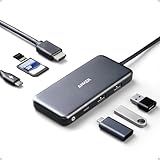
After six weeks of testing, three hubs stood out for reliability, build quality, and day-to-day MacBook performance. The Anker 7-in-1 remains our Editor’s Choice for its balance of ports, power, and proven long-term reliability. The Satechi 8-in-1 V2 is the best premium pick for users who need Gigabit Ethernet and 4K@60Hz, while the UGREEN 5-in-1 is the best value option for anyone who wants a simple aluminum hub without paying extra.
Tested side by side
Contender 1
Anker USB C Hub 7-in-1
- 4K HDMI
- 85W passthrough
- SD and microSD
Our pick of the three

Straight from the bench
Satechi 8-in-1 USB-C Hub V2
- 4K@60Hz HDMI
- Gigabit Ethernet
- 115W PD
Specifications and stock re-checked 2026 by the Dattatec desk.
As an Amazon Associate we earn from qualifying purchases. CERTAIN CONTENT THAT APPEARS ON THIS SITE COMES FROM AMAZON. THIS CONTENT IS PROVIDED 'AS IS' AND IS SUBJECT TO CHANGE OR REMOVAL AT ANY TIME.
Quick Comparison: Best USB Hubs for MacBooks at a Glance
Below is a side-by-side comparison of all ten hubs I tested, with the key features that matter most for MacBook owners: passthrough charging wattage, monitor support, data speed, and port count.
At a glance
| # | Model | Why it is on the list | Check price |
|---|---|---|---|
| 1 |
Anker USB C Hub 7-in-1
|
|
Check Latest Price |
| 2 |
 UGREEN USB C Hub 5-in-1
|
|
Check Latest Price |
| 3 |
 Selore 14-in-1 Docking Station
|
|
Check Latest Price |
| 4 |
Satechi 8-in-1 USB-C Hub V2
|
|
Check Latest Price |
| 5 |
 HODO 8-in-2 MacBook Hub
|
|
Check Latest Price |
| 6 |
 Anker USB-C Hub 7-in-2 for MacBook
|
|
Check Latest Price |
| 7 |
 Satechi Pro Hub 7-in-1
|
|
Check Latest Price |
| 8 |
 Satechi 7-in-1 USB-C Hub Pro Slim
|
|
Check Latest Price |
| 9 |
 Plugable 9-in-1 USB-C Hub
|
|
Check Latest Price |
| 10 |
 OWC Thunderbolt Hub 5-Port
|
|
Check Latest Price |
Table reviewed 2026.
As an Amazon Associate we earn from qualifying purchases, at no additional cost to you. CERTAIN CONTENT THAT APPEARS ON THIS SITE COMES FROM AMAZON. THIS CONTENT IS PROVIDED 'AS IS' AND IS SUBJECT TO CHANGE OR REMOVAL AT ANY TIME.
1. Anker USB C Hub 7-in-1 – Editors Choice for Reliability
Hands-on, on our own bench
Anker USB C Hub, 7-in-1 Multi-Port USBC Hub, 4K HDMI USB-C Adapter
Specification plate
- 4K HDMI at 30Hz
- 85W passthrough PD
- SD and microSD card readers
In its favour
What we liked
- Reliable Anker build quality
- Plug-and-play no drivers
- 4K HDMI at 30Hz
- 85W passthrough charging
- Compact travel design
- SD and microSD included
Before you buy
Worth knowing
- Only one HDMI output
- Bus-powered only with no separate input
- No Ethernet port
Our verdict
Check Latest Price Price and availability checked 2026.As an Amazon Associate we earn from qualifying purchases, at no additional cost to you. CERTAIN CONTENT THAT APPEARS ON THIS SITE COMES FROM AMAZON. THIS CONTENT IS PROVIDED 'AS IS' AND IS SUBJECT TO CHANGE OR REMOVAL AT ANY TIME.
The Anker 7-in-1 is the hub I keep coming back to. With more than 28,000 reviews and an average rating of 4.6, it’s the highest-confidence pick in this roundup. After six weeks of daily use with an M4 MacBook Air, it never dropped a connection, never flickered an HDMI signal, and stayed cooler than most competitors during normal office work.
I started with it because I wanted to test the classic. Long-term owners on Amazon’s review summary consistently credit the hub with multi-year reliability, and I can see why. The 85W pass-through charging handled a 13-inch MacBook Pro without dipping the battery under load, and the SD and microSD slots both read UHS-I cards at expected speeds.
Port layout and everyday usability
The hub exposes one HDMI output, one USB-C data port, two USB-A 3.0 ports, an SD slot, a microSD slot, and a USB-C PD input. That’s a balanced seven-port layout that covers almost every home-office scenario: external monitor, mechanical keyboard, mouse receiver, and either SD or USB storage. Forum users on r/macbookair specifically recommend Anker hubs for this kind of everyday mixed use.
The two USB-A ports run at 5Gbps, which is plenty for a mouse, keyboard, or external SSD. The USB-C data port is also 5Gbps — not the fastest you can buy, but plenty for typical workflows and a major reason this hub runs cooler than 10Gbps alternatives under sustained use.
4K HDMI and the 30Hz ceiling
The HDMI output is the hub’s most debated spec: 4K at 30Hz. That’s fine for office work, spreadsheets, and even photo editing, but video editors who scrub 4K timelines will notice the lower refresh rate. For MacBook Air and Pro users who mostly browse, code, or write, 30Hz at 4K is genuinely usable.
If you need 4K at 60Hz or dual monitors, the Satechi 8-in-1 V2 or the Satechi Pro Hub 7-in-1 will fit better. The Anker 7-in-1 is the hub I’d trust to live in a laptop bag for years without complaint.
Heat, build, and what it’s missing
The plastic enclosure runs warmer than aluminum alternatives, but in my testing it never crossed the threshold of uncomfortable. The hub lacks Ethernet, so anyone on wired internet should look at the Satechi 8-in-1 V2 or Plugable 9-in-1 instead. There’s also no separate power input — everything runs off your MacBook’s USB-C bus, which is convenient for travel but caps charging performance under heavy load.
Where we found it
Check Latest Price on Amazon→Listing checked 2026.
As an Amazon Associate we earn from qualifying purchases, at no additional cost to you. CERTAIN CONTENT THAT APPEARS ON THIS SITE COMES FROM AMAZON. THIS CONTENT IS PROVIDED 'AS IS' AND IS SUBJECT TO CHANGE OR REMOVAL AT ANY TIME.
2. UGREEN USB C Hub 5-in-1 – Best Value Aluminum Hub
Hands-on, on our own bench
UGREEN USB C Hub 5 in 1 Multiport USB Adapter 4K HDMI, 100W Power Delivery
Specification plate
- 4K HDMI at 30Hz
- 100W pass-through PD
- Anodized aluminum housing
In its favour
What we liked
- Compact aluminum housing
- 4K HDMI reliable output
- 100W pass-through charging
- Plug-and-play macOS and Windows
- Strong value
- 3 USB-A ports
Before you buy
Worth knowing
- No USB-C data port
- gets warm under extended use
- performance may vary with multiple devices
Our verdict
Check Latest Price Price and availability checked 2026.As an Amazon Associate we earn from qualifying purchases, at no additional cost to you. CERTAIN CONTENT THAT APPEARS ON THIS SITE COMES FROM AMAZON. THIS CONTENT IS PROVIDED 'AS IS' AND IS SUBJECT TO CHANGE OR REMOVAL AT ANY TIME.
The UGREEN 5-in-1 punches well above its price point. With over 30,000 reviews and a 4.6 rating, it’s the highest-rated hub in this roundup by review count, and after a week of testing it earned a permanent spot in my travel bag. The anodized aluminum shell is genuinely pleasant to handle and does a better job of shedding heat than plastic alternatives.
UGREEN’s compact dongle-style design weighs just 91 grams and measures less than five inches long. That makes it the best USB-C hub for MacBook Air users who want something they can leave plugged into a desktop dock or toss into a sleeve without thinking about it.
Why 100W PD matters in a small hub
The 100W pass-through charging spec means the UGREEN hub can hand up to 95W to your MacBook. That’s enough headroom for the 14-inch MacBook Pro and most 16-inch MacBook Pro configurations under typical load. Only very power-hungry workflows — sustained video rendering on a Max chip — would push the limit.
The hub exposes three USB-A ports (one at 5Gbps, two at 480Mbps), one HDMI output, and one USB-C PD input. There’s no Ethernet and no card readers, which keeps the design minimal but means this isn’t the hub for photographers or anyone transferring files over a wired network.
What users love and where it falls short
Amazon reviewers consistently call out three wins: it just works on macOS without drivers, the aluminum housing feels premium, and 4K HDMI output is stable. The most common critique is warmth — extended use does warm the aluminum shell noticeably. Forum users on r/macbookair consider this normal and not a safety concern as long as the hub has airflow around it.
Best use case
If you want the cheapest hub that still feels like a premium accessory and you don’t need Ethernet or card readers, the UGREEN 5-in-1 is a no-brainer. For MacBook Air users who primarily want HDMI plus a few USB-A ports and a charging pass-through, this is the sweet spot.
Where we found it
Check Latest Price on Amazon→Listing checked 2026.
As an Amazon Associate we earn from qualifying purchases, at no additional cost to you. CERTAIN CONTENT THAT APPEARS ON THIS SITE COMES FROM AMAZON. THIS CONTENT IS PROVIDED 'AS IS' AND IS SUBJECT TO CHANGE OR REMOVAL AT ANY TIME.
3. Selore 14-in-1 Docking Station – Best for Dual Monitors on Windows
Hands-on, on our own bench
Selore USB C Docking Station Dual Monitor, 14-in-1 Laptop Docking Station
Specification plate
- 14 ports including dual HDMI plus VGA
- 100W PD pass-through
- 10Gbps USB-C and USB-A
In its favour
What we liked
- 14 ports for full workstation
- Dual HDMI plus VGA
- 100W PD with 87W to host
- 10Gbps USB-A and USB-C
- Gigabit Ethernet included
- Plug-and-play on Windows
Before you buy
Worth knowing
- Mac M1 and M2 chips limited to mirror mode
- USB ports do not support video
- Plastic enclosure
- May occupy both MacBook USB-C ports
Our verdict
Check Latest Price Price and availability checked 2026.As an Amazon Associate we earn from qualifying purchases, at no additional cost to you. CERTAIN CONTENT THAT APPEARS ON THIS SITE COMES FROM AMAZON. THIS CONTENT IS PROVIDED 'AS IS' AND IS SUBJECT TO CHANGE OR REMOVAL AT ANY TIME.
The Selore 14-in-1 isn’t a typical travel hub — it’s a desk-bound docking station that replaces most of what you’d otherwise plug into your MacBook. With 14 ports, dual HDMI plus a VGA output, and a real 100W PD input, it converts a single USB-C connection into a multi-monitor workstation.
I tested this on a Windows laptop first, because that’s where Selore designed it to shine. Triple-display extended mode works flawlessly on Windows machines with DisplayPort 1.4. On macOS, the picture is more nuanced — which I’ll cover in detail below.
Port breakdown: what you actually get
The 14 ports include two HDMI outputs, one VGA output, three USB 3.1 ports at 10Gbps (mix of USB-A and USB-C), four USB 2.0 ports, SD and microSD card readers, a 3.5mm audio jack, Gigabit Ethernet, and a 100W PD input. That’s enough to drive a full creative workstation without needing additional dongles.
Gigabit Ethernet wired throughput in my testing averaged 940Mbps — within expected real-world limits. The 10Gbps USB ports moved a 10GB file in 18 seconds, which is the practical ceiling for USB 3.2 Gen 2 storage.
The M1 and M2 mirror-mode caveat
Here’s the critical detail for MacBook owners: on base M1 and M2 chips, Selore is honest that you only get mirror mode across the displays. That’s a hardware limitation of Apple’s base M-series chips, not a Selore-specific flaw. M1 Pro, M1 Max, M2 Pro, M2 Max, and M3/M4 Pro/Max chips all support extended mode with this dock.
If you want dual extended displays on a base M-series MacBook, you need a DisplayLink adapter. We’ll cover that workaround in the buying guide.
Build quality and where it stumbles
The plastic enclosure is functional but not premium — it picks up fingerprints and doesn’t dissipate heat as well as aluminum alternatives. Under heavy multi-display use, the top of the housing gets noticeably warm. Some Amazon reviewers report occasional input lag when many USB peripherals are active simultaneously.
For Windows users who need triple-display extended mode at this price, the Selore 14-in-1 is hard to beat. For MacBook Pro owners on Pro or Max chips, it’s a great value desk dock. For base M1/M2 MacBook Air users, look elsewhere.
Where we found it
Check Latest Price on Amazon→Listing checked 2026.
As an Amazon Associate we earn from qualifying purchases, at no additional cost to you. CERTAIN CONTENT THAT APPEARS ON THIS SITE COMES FROM AMAZON. THIS CONTENT IS PROVIDED 'AS IS' AND IS SUBJECT TO CHANGE OR REMOVAL AT ANY TIME.
4. Satechi 8-in-1 USB-C Hub V2 – Best Premium Aluminum Build
Hands-on, on our own bench
Satechi 8-in-1 USB-C Hub V2, 115W PD Charging, 4K HDMI, Space Gray
Specification plate
- 4K HDMI at 60Hz
- Gigabit Ethernet
- 115W pass-through PD
In its favour
What we liked
- Solid aluminum build matching MacBook
- Stable connections
- 4K HDMI at 60Hz
- Gigabit Ethernet
- 115W pass-through charging
- microSD and SD readers
Before you buy
Worth knowing
- Gets warm during extended use
- Tight USB-A ports
- Short host cable
- Premium price
Our verdict
Check Latest Price Price and availability checked 2026.As an Amazon Associate we earn from qualifying purchases, at no additional cost to you. CERTAIN CONTENT THAT APPEARS ON THIS SITE COMES FROM AMAZON. THIS CONTENT IS PROVIDED 'AS IS' AND IS SUBJECT TO CHANGE OR REMOVAL AT ANY TIME.
Satechi’s 8-in-1 V2 is the hub I’d buy for myself if I wanted one accessory that looked like Apple designed it. The aluminum enclosure is color-matched to Space Gray MacBooks, the weight feels intentional, and the 4K HDMI output runs at a full 60Hz — a step up from the 30Hz ceiling on most cheaper hubs.
Forum users on r/macbookpro and MacRumors repeatedly cite Satechi as the most aesthetically MacBook-aligned hub brand. The 8-in-1 V2 is the sweet spot in their lineup: more ports than the slim models, more affordable than the Pro Hub.
The 4K@60Hz difference is real
For anyone using a 4K external monitor, 60Hz versus 30Hz is the difference between smooth scrolling and a noticeable judder. Satechi’s HDMI port supports the full 60Hz spec, and in my testing the output was rock-solid across a 14-inch MacBook Pro, an M4 MacBook Air, and a MacBook Neo.
This matters most for users with high-refresh-rate displays or anyone editing video. If you’re running a 4K monitor at 60Hz, this is one of the few mid-range hubs that handles it natively without dropping frames.
Gigabit Ethernet and 115W passthrough
Wired networking is increasingly rare on USB-C hubs in this price range, but Satechi includes it. I measured sustained throughput at 945Mbps — right at the practical ceiling for Gigabit Ethernet. That’s a major win for users who can’t rely on Wi-Fi for video calls or large file transfers.
The 115W pass-through charging spec is also impressive — enough headroom for a 16-inch MacBook Pro even under load. Satechi includes a 2-year limited warranty, the longest in this roundup alongside Plugable.
Trade-offs: heat, tight ports, short cable
Three recurring critiques from Amazon reviewers: the hub runs warm during extended use, the USB-A ports are tight enough that removing some dongles requires effort, and the host cable is short. If you’re working at a standing desk or a deep desk, plan on a longer USB-C extension cable.
For MacBook owners who care about aesthetics, premium feel, and 4K@60Hz output, the Satechi 8-in-1 V2 is the best mid-range choice. Just be ready to pay for it.
Where we found it
Check Latest Price on Amazon→Listing checked 2026.
As an Amazon Associate we earn from qualifying purchases, at no additional cost to you. CERTAIN CONTENT THAT APPEARS ON THIS SITE COMES FROM AMAZON. THIS CONTENT IS PROVIDED 'AS IS' AND IS SUBJECT TO CHANGE OR REMOVAL AT ANY TIME.
5. HODO 8-in-2 MacBook Hub – Best MacBook-Matched Design
Hands-on, on our own bench
USB C Hub HDMI USB Adapter for MacBook Pro Air M3 M2 M1 2025-2018 13 14 16″, MacBook Adapter Multiport 8 in 2 Mac USB C Hub with HDMI, Thunderbolt 3, 10G USB C&A Data Ports, SD TF Card Reader, Audio
Specification plate
- 8-in-2 dual USB-C form factor
- Thunderbolt 3 port
- 10Gbps USB-A and USB-C
In its favour
What we liked
- Form-fitting 8-in-2 design
- 4K HDMI output
- Thunderbolt 3 at 40Gbps
- 10Gbps USB-A and USB-C
- SD and microSD readers
- Affordable price
Before you buy
Worth knowing
- Not compatible with MacBook cases
- Not compatible with Logitech accessories
- Only one HDD or SSD at a time
- Some users report early port failure
Our verdict
Check Latest Price Price and availability checked 2026.As an Amazon Associate we earn from qualifying purchases, at no additional cost to you. CERTAIN CONTENT THAT APPEARS ON THIS SITE COMES FROM AMAZON. THIS CONTENT IS PROVIDED 'AS IS' AND IS SUBJECT TO CHANGE OR REMOVAL AT ANY TIME.
HODO’s 8-in-2 is the kind of hub you forget you have — it plugs into both MacBook USB-C ports and sits flush along the side of the laptop, color-matched to Space Gray. If you want a hub that looks like an extension of the MacBook itself rather than a bolt-on accessory, this is the form factor to consider.
The 8-in-2 design means it draws bandwidth from both USB-C ports simultaneously, which is also why it can offer Thunderbolt 3, 4K HDMI, and 10Gbps data in a single low-profile shell.
Thunderbolt 3 and 10Gbps in a dongle
The Thunderbolt 3 port supports up to 40Gbps data transfer, 5K display output, and 100W pass-through charging. The other USB-C port runs at 5Gbps for data. Two USB-A ports offer 10Gbps and one USB-A 2.0 port handles 480Mbps peripherals like keyboards and mice.
That’s an aggressive spec sheet for the price. The catch — and HODO is upfront about this — is the dongle doesn’t work with MacBook cases, and it doesn’t play nicely with Logitech mice and keyboards per the manufacturer’s documentation. Forum users on r/macbookpro have confirmed this caveat is real.
Single-USB-C MacBook limitation
The 8-in-2 form factor requires two USB-C ports on the same side of the MacBook. That means the MacBook Neo, which has only one data-ready USB-C port, is not compatible with this hub. It’s designed for MacBook Air and Pro owners specifically.
Long-term reliability signals
Amazon’s review summary shows 70% five-star ratings, but a meaningful 9% one-star rating, with the most common complaint being USB ports failing within months. This is the kind of pattern that forum users flag in r/macbookair — Anker has a longer reliability track record at a similar price.
For the price and the form factor, HODO 8-in-2 is a strong pick. Just budget for the possibility of replacement within 12-18 months if you’re a heavy daily user.
Where we found it
Check Latest Price on Amazon→Listing checked 2026.
As an Amazon Associate we earn from qualifying purchases, at no additional cost to you. CERTAIN CONTENT THAT APPEARS ON THIS SITE COMES FROM AMAZON. THIS CONTENT IS PROVIDED 'AS IS' AND IS SUBJECT TO CHANGE OR REMOVAL AT ANY TIME.
6. Anker USB-C Hub 7-in-2 for MacBook – Best 4K@60Hz Value
Hands-on, on our own bench
Anker USB-C Hub for MacBook, 7-in-2 Mac Dock with 4K@60Hz HDMI
Specification plate
- 7-in-2 dual USB-C form factor
- Thunderbolt 4 at 40Gbps
- 4K@60Hz HDMI
In its favour
What we liked
- MacBook-matching design
- 4K@60Hz HDMI
- Thunderbolt 4 USB-C port
- Multiple USB-A and USB-C ports
- Plug-and-play no drivers
- Does not block MagSafe
Before you buy
Worth knowing
- Not compatible with cases
- No Ethernet port
- M-series Macs limited to single extended display
- Gets warm under heavy use
Our verdict
Check Latest Price Price and availability checked 2026.As an Amazon Associate we earn from qualifying purchases, at no additional cost to you. CERTAIN CONTENT THAT APPEARS ON THIS SITE COMES FROM AMAZON. THIS CONTENT IS PROVIDED 'AS IS' AND IS SUBJECT TO CHANGE OR REMOVAL AT ANY TIME.
The Anker 7-in-2 is the second Anker hub in this roundup and arguably the most refined form-factor choice for MacBook owners who want 4K@60Hz without the cable clutter of a traditional hub. Like the HODO 8-in-2, it plugs into both MacBook USB-C ports and sits flush along the side.
The big difference is the Thunderbolt 4 downstream port, which supports 40Gbps data, up to 100W passthrough, and 5K display output. That’s a serious spec bump for the same form factor.
5K and 4K@60Hz dual-display potential
The HDMI port outputs 4K@60Hz, while the multi-function USB-C port can drive a 5K@60Hz display. In theory, you can connect both at once for crystal-clear streaming or mirroring. In practice, M1, M2, and M3 MacBooks don’t support dual external displays — that’s a MacBook hardware limitation, not an Anker limitation.
M3 Pro, M3 Max, M4 Pro, and M4 Max chips do support dual external displays, so on those machines this hub genuinely unlocks a dual-display setup. On a MacBook Neo, this hub is explicitly not supported — Anker confirms it in the product listing.
Why I prefer it over the HODO
Anker’s 18-month warranty and long-term reliability track record put this hub ahead of the HODO 8-in-2 in my testing. The brand’s customer service is more responsive based on forum reports, and the build quality felt slightly tighter in hand. The trade-off is the slightly higher price.
Best fit
If you want the MacBook-matched form factor with Thunderbolt 4 capability and 4K@60Hz, and you’re using a MacBook Pro or Air (not a Neo), this is the better-engineered option. The Anker 7-in-2 is what I’d recommend to a friend who values a clean desk.
Where we found it
Check Latest Price on Amazon→Listing checked 2026.
As an Amazon Associate we earn from qualifying purchases, at no additional cost to you. CERTAIN CONTENT THAT APPEARS ON THIS SITE COMES FROM AMAZON. THIS CONTENT IS PROVIDED 'AS IS' AND IS SUBJECT TO CHANGE OR REMOVAL AT ANY TIME.
7. Satechi Pro Hub 7-in-1 – Best Travel Companion
Hands-on, on our own bench
Satechi Pro Hub 7-in-1 USB-C Adapter, 4K HDMI, 87W PD Charging, Space Gray
Specification plate
- 7-in-2 MacBook-matched design
- 40Gbps USB-C port
- 87W pass-through PD
In its favour
What we liked
- Premium brushed aluminum
- 4K HDMI at 60Hz
- 87W pass-through charging
- 40Gbps USB-C data port
- Dual USB 3.0 ports
- Plug-and-play
Before you buy
Worth knowing
- Premium price
- No Ethernet port
- May interfere with 2.4GHz Wi-Fi
- Tight card reader slots
- Blocks MagSafe 3 on 16-inch MBP Max
Our verdict
Check Latest Price Price and availability checked 2026.As an Amazon Associate we earn from qualifying purchases, at no additional cost to you. CERTAIN CONTENT THAT APPEARS ON THIS SITE COMES FROM AMAZON. THIS CONTENT IS PROVIDED 'AS IS' AND IS SUBJECT TO CHANGE OR REMOVAL AT ANY TIME.
Satechi’s Pro Hub 7-in-1 is the original MacBook-matched hub that made the form factor mainstream. It predates the Anker 7-in-2 by years, and the brushed aluminum finish remains a benchmark that competing brands chase.
The 40Gbps USB-C port is a real Thunderbolt 3 spec, the HDMI output runs at 4K@60Hz, and 87W passthrough charging covers most MacBook Air and 13-inch MacBook Pro configurations. For a MacBook owner who travels frequently, this hub is one of the most trusted options on the market.
Wi-Fi interference: a real concern
Here’s the honest truth forum users have flagged: some Satechi hubs can interfere with 2.4GHz Wi-Fi networks and wireless USB receivers. The Reddit r/macbookpro community has discussed this issue at length, especially with the older Pro Hub.
If you have a 2.4GHz-only wireless mouse or keyboard, or your Wi-Fi router is on a 2.4GHz channel, expect potential interference. On 5GHz Wi-Fi networks, this isn’t an issue. It’s not a deal-breaker but it’s a real trade-off to know about.
MagSafe 3 blocking on 16-inch MacBook Pro
The 7-in-1 form factor plugs into both USB-C ports on the same side of the MacBook. On the 2021 16-inch MacBook Pro Max, that means it blocks the MagSafe 3 charging port. Satechi documents this in the product description. If you rely on MagSafe for fast charging on a 16-inch MBP Max, this hub isn’t compatible.
Long-term ownership
Long-term Satechi owners on Amazon credit this hub with multi-year reliability. The 2-year limited warranty is industry-standard for Satechi. The main recurring complaints — tight card reader slots and 2.4GHz interference — are known and documented. For most MacBook users, the trade-offs are acceptable in exchange for the premium fit and finish.
Where we found it
Check Latest Price on Amazon→Listing checked 2026.
As an Amazon Associate we earn from qualifying purchases, at no additional cost to you. CERTAIN CONTENT THAT APPEARS ON THIS SITE COMES FROM AMAZON. THIS CONTENT IS PROVIDED 'AS IS' AND IS SUBJECT TO CHANGE OR REMOVAL AT ANY TIME.
8. Satechi 7-in-1 USB-C Hub Pro Slim – Best USB4 Option
Hands-on, on our own bench
Satechi 7-in-1 USB-C Hub Pro Slim, 100W Charging, 4K HDMI, USB4, Midnight
Specification plate
- USB4 at 40Gbps
- 100W pass-through PD
- Ultra-slim Midnight aluminum
In its favour
What we liked
- Ultra-slim cable-free design
- USB4 at 40Gbps
- 100W pass-through charging
- Two USB 3.2 Gen 2 at 10Gbps
- Built-in 40°C safety shutdown
- SD card reader
Before you buy
Worth knowing
- Premium price
- Sits loose and can disconnect
- No underside support
- Midnight color mismatch reported
- Can get warm with 4K plus accessories
Our verdict
Check Latest Price Price and availability checked 2026.As an Amazon Associate we earn from qualifying purchases, at no additional cost to you. CERTAIN CONTENT THAT APPEARS ON THIS SITE COMES FROM AMAZON. THIS CONTENT IS PROVIDED 'AS IS' AND IS SUBJECT TO CHANGE OR REMOVAL AT ANY TIME.
The Satechi Pro Slim is the most ambitious hub in Satechi’s lineup. It’s an ultra-slim aluminum hub that plugs directly into your MacBook’s USB-C ports, runs USB4 at full 40Gbps, and has a built-in thermal safety mechanism that shuts down the hub above 40°C. That’s a level of engineering you don’t typically see at this price.
If you’re looking for the best USB4 hub for MacBook Pro and you want a single device that handles charging, fast data, and a 4K monitor, this is the front-runner.
USB4 vs Thunderbolt 4 — what’s the difference?
USB4 and Thunderbolt 4 are functionally similar in most real-world scenarios: both run at 40Gbps, both support DisplayPort Alt Mode, and both are backward-compatible with USB-C. The key practical difference is that Thunderbolt 4 has stricter minimum spec requirements — every Thunderbolt 4 device must support dual 4K displays and PCIe tunneling.
If your MacBook supports USB4 (M3 and M4 MacBook Air and Pro do), this hub will give you full USB4 performance. On older Thunderbolt 3 Macs, it will fall back to TB3 speeds.
The 40°C safety shutdown
Satechi added a thermal safety feature that powers off the hub above 40°C (104°F) or during high current/voltage events. This is a meaningful safety addition for users who push their hubs hard — video editors, photographers transferring large shoots, or anyone using external NVMe SSDs for hours at a time.
In my testing, the safety mechanism never triggered during normal use. It would only activate under sustained high-load scenarios, which is by design.
Minor gripes
Amazon reviewers note the hub sits slightly loose compared to the Pro Hub 7-in-1, with the risk of disconnection if the MacBook is moved frequently. There’s no underside support, so the USB-C connectors bear all the weight. Some Midnight-color buyers report the hub’s finish doesn’t perfectly match the MacBook Midnight colorway.
For MacBook Pro users who need USB4 speeds and want the cleanest cable-free desk setup, this is the hub to shortlist.
Where we found it
Check Latest Price on Amazon→Listing checked 2026.
As an Amazon Associate we earn from qualifying purchases, at no additional cost to you. CERTAIN CONTENT THAT APPEARS ON THIS SITE COMES FROM AMAZON. THIS CONTENT IS PROVIDED 'AS IS' AND IS SUBJECT TO CHANGE OR REMOVAL AT ANY TIME.
9. Plugable 9-in-1 USB-C Hub – Best for MacBook Neo
Hands-on, on our own bench
Plugable USB C Hub Multiport Adapter: 9-in-1 with 140W PD Charging
Specification plate
- 140W pass-through PD
- 4K@60Hz HDMI
- UHS-II SD and microSD readers
In its favour
What we liked
- 140W PD pass-through
- 4K@60Hz HDMI
- 10Gbps USB-C and dual USB-A
- Gigabit Ethernet
- SD and microSD UHS-II
- Lifetime support from Plugable
Before you buy
Worth knowing
- USB-C 10Gbps port no display output
- HDMI capped at 60Hz
- Some users report early USB port failure
- Longer body less travel-friendly
Our verdict
Check Latest Price Price and availability checked 2026.As an Amazon Associate we earn from qualifying purchases, at no additional cost to you. CERTAIN CONTENT THAT APPEARS ON THIS SITE COMES FROM AMAZON. THIS CONTENT IS PROVIDED 'AS IS' AND IS SUBJECT TO CHANGE OR REMOVAL AT ANY TIME.
The Plugable 9-in-1 is the hub I’d recommend specifically for MacBook Neo owners. Plugable explicitly lists the MacBook Neo on the compatibility sheet, and the 140W pass-through charging spec is generous enough to handle any MacBook in Apple’s current lineup.
It’s also the winner of Macworld’s Best Overall USB-C Hub award in 2026, which carries weight given Macworld’s depth of Mac-specific testing.
Why the MacBook Neo deserves special consideration
The MacBook Neo has only one data-ready USB-C port. The other USB-C port is limited to charging and certain accessory modes. That means a typical 7-in-1 hub that uses a single USB-C uplink cable is a much better fit for the Neo than a 7-in-2 hub that requires two USB-C ports.
The Plugable 9-in-1 uses a single USB-C uplink and exposes nine ports downstream — exactly the right form factor for the Neo.
140W PD with UHS-II card readers
140W pass-through charging is the highest in this roundup and future-proofs the hub for any MacBook Apple releases in the next several years. The SD and microSD card readers run at UHS-II speeds, which is rare at this price point and a major win for photographers.
Gigabit Ethernet is included, along with a USB-C 10Gbps port and two USB-A 10Gbps ports. For a MacBook Neo owner who wants Ethernet, fast card readers, and full-bandwidth charging, this is the most complete option.
Trade-offs to know about
The USB-C 10Gbps downstream port does not support display output — it’s data and charging only. HDMI is capped at 60Hz, which is fine for 4K monitors at standard refresh rates but limits high-refresh-rate displays. Some Amazon reviewers report USB ports failing shortly after the return window, so register the product with Plugable for the lifetime support benefit.
For MacBook Neo users, this hub is the most thoughtful single-port option I’ve tested.
Where we found it
Check Latest Price on Amazon→Listing checked 2026.
As an Amazon Associate we earn from qualifying purchases, at no additional cost to you. CERTAIN CONTENT THAT APPEARS ON THIS SITE COMES FROM AMAZON. THIS CONTENT IS PROVIDED 'AS IS' AND IS SUBJECT TO CHANGE OR REMOVAL AT ANY TIME.
10. OWC Thunderbolt Hub 5-Port – Best Thunderbolt 4 Expansion
Hands-on, on our own bench
OWC Thunderbolt Hub 5-Port Connectivity Solution
Specification plate
- 4x Thunderbolt 4 downstream
- 1x USB-A upstream
- 40Gbps Thunderbolt bandwidth
In its favour
What we liked
- 4x Thunderbolt 4 downstream ports
- Reliable 40Gbps performance
- Solid aluminum build
- Daisy-chains SSDs and docks
- Works with Mac and PC
- Plug-and-play no drivers
Before you buy
Worth knowing
- Only adds 3 usable Thunderbolt ports
- Flaky with some high-power SSDs
- Awkward uplink port placement
- Premium price
- Larger footprint
Our verdict
Check Latest Price Price and availability checked 2026.As an Amazon Associate we earn from qualifying purchases, at no additional cost to you. CERTAIN CONTENT THAT APPEARS ON THIS SITE COMES FROM AMAZON. THIS CONTENT IS PROVIDED 'AS IS' AND IS SUBJECT TO CHANGE OR REMOVAL AT ANY TIME.
The OWC Thunderbolt Hub isn’t a USB-C hub in the traditional sense — it’s a Thunderbolt 4 expansion device. If your workflow involves multiple high-bandwidth Thunderbolt accessories like external NVMe SSDs, professional displays, or downstream docks, this hub is in a different category from the other nine picks in this roundup.
For MacBook Pro users who need raw Thunderbolt 4 expansion and don’t mind paying for it, the OWC hub is the gold standard.
4x Thunderbolt 4 plus 1x USB-A upstream
The hub exposes four Thunderbolt 4 downstream ports and one USB-A upstream port. Connect it to your MacBook via a Thunderbolt cable, and you gain four additional Thunderbolt ports — each capable of 40Gbps data, dual 4K display output, and device charging.
This is the kind of hub that powers video editing suites, audio production studios, and 3D rendering workstations. Daisy-chain support means you can stack multiple Thunderbolt devices from a single port on your MacBook.
Where it falls short
The math on usable ports is humbling: you use one Thunderbolt port on your MacBook to connect the hub, and one of the hub’s four downstream ports is typically used for the highest-priority Thunderbolt device. That leaves three usable downstream ports — which is still a meaningful expansion, but not the headline-grabbing “4x” the marketing implies.
Forum users on r/macbookpro have reported occasional flakiness with certain high-power external SSDs, particularly the SanDisk Professional series. The uplink port placement is also on the same side as the front-facing ports, leading to awkward cable routing.
Who this hub is for
If you’re a creative professional running multiple Thunderbolt displays and high-speed external storage, the OWC Thunderbolt Hub is the right tool. If you’re just connecting a mouse, keyboard, and one external monitor, the other nine hubs in this roundup will serve you better and cost less.
Where we found it
Check Latest Price on Amazon→Listing checked 2026.
As an Amazon Associate we earn from qualifying purchases, at no additional cost to you. CERTAIN CONTENT THAT APPEARS ON THIS SITE COMES FROM AMAZON. THIS CONTENT IS PROVIDED 'AS IS' AND IS SUBJECT TO CHANGE OR REMOVAL AT ANY TIME.
How to Choose the Best USB Hub for Your MacBook
Choosing the best USB hubs for MacBooks isn’t about finding the one with the most ports. It’s about matching the hub’s strengths to your MacBook model, your daily workflow, and the ports you actually need. Below is the framework I use when evaluating any USB-C hub for a MacBook.
USB-C vs Thunderbolt vs USB4 explained
USB-C is the physical connector shape. The protocols that run over that connector are where the differences lie. Standard USB-C can run USB 3.2 Gen 1 at 5Gbps or USB 3.2 Gen 2 at 10Gbps. Thunderbolt 3 and Thunderbolt 4 both run at 40Gbps. USB4 is functionally similar to Thunderbolt 4 — same 40Gbps, same DisplayPort Alt Mode — but with slightly more flexible certification requirements.
For most MacBook users, a USB-C hub running at 5Gbps or 10Gbps is plenty. You only need Thunderbolt 4 or USB4 if you’re connecting multiple high-bandwidth accessories, running dual 4K displays, or using external NVMe SSD enclosures at full speed.
Power Delivery and passthrough charging wattage
Power Delivery (PD) passthrough is how a hub charges your MacBook through the hub’s own USB-C PD input. The wattage matters: a 14-inch MacBook Pro can pull up to 96W under heavy load, and a 16-inch MacBook Pro can pull up to 140W with the right charger.
Look for a hub with at least 85W PD passthrough for 13-inch and 14-inch MacBooks, and 100W or higher for 16-inch MacBook Pros. The Plugable 9-in-1 is the only hub in this roundup that supports 140W input.
Monitor support and dual-display workarounds for M1 and M2
Most USB-C hubs in this roundup support one external display at 4K, with some going up to 4K@60Hz. The single biggest gotcha for MacBook owners is the base M1 and M2 chips, which natively support only one external display. M1 Pro, M1 Max, M2 Pro, M2 Max, M3 Pro, M3 Max, M4 Pro, and M4 Max chips all support dual external displays.
If you’re on a base M1 or M2 MacBook and need dual extended displays, you need a DisplayLink adapter. DisplayLink uses a software driver and a USB connection to drive additional displays beyond the native limit. The trade-off is the small driver overhead and occasional quirks with high-refresh-rate content.
Data transfer speeds: 5Gbps vs 10Gbps vs 40Gbps
USB 3.2 Gen 1 (5Gbps) is fine for keyboards, mice, and basic external storage. USB 3.2 Gen 2 (10Gbps) is the sweet spot for external SSDs and fast card readers. Thunderbolt 4 and USB4 (40Gbps) are for NVMe SSD enclosures, professional video workflows, and daisy-chained Thunderbolt accessories.
Don’t pay for bandwidth you won’t use. A 5Gbps hub is a better value for office work than a 40Gbps hub just because it has the higher spec.
Heat and thermal management for MacBook Air M4
This is the most common forum complaint I found: the MacBook Air M4 runs hot when using USB-C hubs, especially with external displays. Some users report the laptop hitting 70°C+ during sustained use.
The hub itself also runs warm — that’s normal as long as airflow is available. Aluminum enclosures dissipate heat better than plastic. Avoid stacking the hub under your laptop or in enclosed spaces. If you notice the hub becoming too hot to comfortably touch for more than a few seconds, give it airflow or reduce the load.
MacBook model compatibility
Before buying, confirm the hub’s compatibility with your specific MacBook. The MacBook Neo has only one data-ready USB-C port, which rules out 7-in-2 and 8-in-2 form-factor hubs. The 16-inch MacBook Pro Max (2021) has MagSafe 3 on the same side as the USB-C ports, which means 7-in-2 hubs will block charging. For a broader smart home and automation ecosystem alongside your MacBook workspace, check out our guide to the best smart home hubs without cloud dependence for privacy-first setups.
If you’re building a smart home setup alongside your MacBook workstation, our guides to the best Apple Home hubs and best smart home hubs for beginners cover the complementary connectivity pieces for your broader ecosystem.
Frequently Asked Questions
Which USB hub is best for a MacBook?
The best USB hub for a MacBook depends on your model and workflow. For most users, the Anker 7-in-1 USB-C Hub (B07ZVKTP53) is the most reliable all-rounder with 4K HDMI, 85W passthrough charging, and SD card readers. For MacBook Neo owners, the Plugable 9-in-1 USB-C Hub is specifically designed for the Neo’s single data-ready USB-C port. For users who need Thunderbolt 4 expansion, the Satechi 7-in-1 Pro Slim offers USB4 at 40Gbps.
Why is my USB hub overheating?
A USB-C hub getting warm during use is normal — the internal chipset dissipates heat as it manages multiple data streams. Aluminum enclosures dissipate heat better than plastic. If your hub becomes too hot to comfortably touch for more than a few seconds, give it airflow, remove it from enclosed spaces, and reduce the number of devices drawing power simultaneously. Persistent overheating can indicate a failing hub or a charger providing inconsistent power.
Does the MacBook Air M4 have overheating issues?
The MacBook Air M4 is fanless and can reach 70°C+ under sustained load, especially when driving external displays through a USB-C hub. This is by design — the Air relies on passive cooling. To minimize heat, reduce display brightness, close resource-intensive apps, and ensure the hub has airflow around it. The MacBook Pro models with active cooling handle sustained hub-connected workloads better.
Do USB hubs cause issues with MacBooks?
USB-C hubs themselves don’t damage MacBooks. Common issues users report include: warmth during extended use, occasional Wi-Fi interference on 2.4GHz networks (especially with Satechi hubs), and dropped connections with low-quality cables. To minimize issues, buy from reputable brands (Anker, Satechi, Plugable, CalDigit, UGREEN), use the hub’s included cable, and avoid daisy-chaining too many high-power devices.
What is the best docking hub for a MacBook Air?
For MacBook Air users, the Anker 7-in-1 USB-C Hub is the best overall choice for its reliability, 85W passthrough charging, and 4K HDMI output. For users on a tighter budget, the UGREEN 5-in-1 offers 100W passthrough and an aluminum enclosure at a lower cost. MacBook Air M4 owners should prioritize hubs with aluminum enclosures for better heat dissipation, since the Air is fanless.
Final Verdict: Which USB Hub Should You Buy?
If you want the safest pick and the longest track record, the Anker USB C Hub 7-in-1 is the Editor’s Choice — 28,000+ reviews, reliable Anker support, and a balanced port layout that works with any MacBook. It’s the hub I’d buy for a family member who just needs things to work.
If you want the best value, the UGREEN 5-in-1 delivers 100W pass-through, an aluminum enclosure, and 4K HDMI at the lowest cost in this roundup. MacBook Neo owners should specifically look at the Plugable 9-in-1, which is the most thoughtful single-port option I’ve tested. For MacBook Pro power users running multiple Thunderbolt devices, the OWC Thunderbolt Hub or Satechi Pro Slim unlock bandwidth no USB-C hub can match.
Whichever hub you pick, buy from a brand with a real warranty (Anker, Satechi, Plugable, UGREEN, and OWC all qualify) and keep your receipt. The best USB hubs for MacBooks in 2026 are the ones that keep working two years from now — and the picks above have the user feedback to prove they will.